
Printer Connection Guide
Understand printer offline and driver missing messages.
A simple educational visual guide explaining printer offline status, driver unavailable messages, print queue behavior, USB detection, Wi-Fi printer search, and printer communication flow.
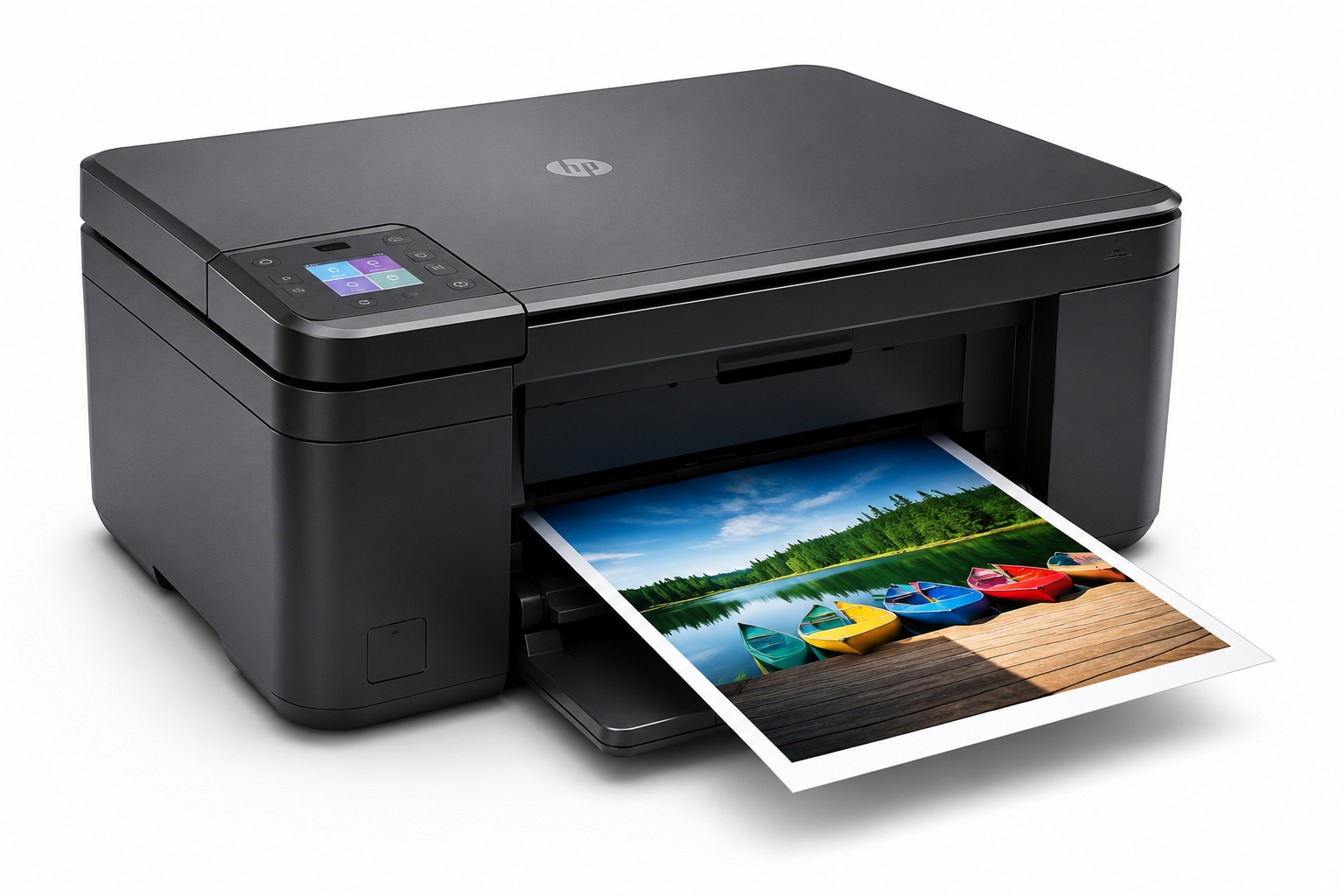
Match the screen with the printer situation.
These examples explain common printer screens in a learning context, so readers can understand what the message usually points to before reading the detailed guide.
Printer Offline
The printer appears in Devices & Printers, but the status says Offline. This usually means the computer can see the printer record, but the current communication path is not active.
Driver Missing
The computer may show driver unavailable, unknown device, or a warning symbol. This means the system does not have the right software layer to communicate with the printer properly.
USB Not Recognized
A USB printer may be connected, but the computer may not detect it correctly. This can relate to cable connection, USB port behavior, or device recognition.
Print Queue Stuck
Old documents may remain pending and block new print jobs. The print queue shows the order of print requests and whether any job is paused, stuck, or waiting.
WiFi Printer Not Found
A wireless printer may be powered on but not appear during search. This usually relates to network visibility, same Wi-Fi connection, or printer discovery behavior.
Add Printer Not Showing
The Add Printer screen may not show the model immediately. The system usually searches available USB, network, or wireless printer paths before listing a device.
Where users usually check printer status.
Printer settings, Devices & Printers, print queue, and Device Manager are common areas where printer status and driver information appear.
Devices & Printers
Shows connected printers and their basic status. Useful for verifying if the system recognizes the physical device profile.
Print Queue
Shows pending, paused, or failed print requests. It manages files queued for print spooling.
Device Manager
Shows unknown device or missing driver warnings. Lists the physical hardware ports and driver stack details.
Printer learning basics
Before understanding offline messages, driver warnings, or print queue issues, it helps to understand the normal printer communication path. A printer usually needs a connection path, a driver, and an active print queue before documents can move from the computer to the printer.
Connection path
USB, Wi-Fi, or network path lets the computer find the printer.
Driver layer
The driver helps the operating system talk to the printer.
Print queue
Print jobs wait in order before the printer processes them.
Common signs users may notice
These signs usually appear before users check printer settings or try to diagnose hardware status.
Offline status
Printer appears in the list but shows offline or unavailable.
Driver warning
Driver unavailable, unknown device, or warning symbol appears.
Queue stuck
Documents remain pending and new print jobs do not continue.
Network search
Wireless printer does not appear during printer search.
Start with simple visual guides.
These guides explain common learning areas for printer connection with clean flow, simple wording, and visual step-by-step images.
How to Set Up a New Printer
6 visual steps to physically prepare your new printer hardware for its first use.
Troubleshooting Offline Errors
9 practical visual solutions for when your printer status says offline or not responding.
Printer driver installation guide
12 comprehensive steps to manually add and configure your printer software in Windows.
What a driver does
A driver is the translator between computer and printer. When you click print, the document does not directly go to the printer. The driver helps convert the document into instructions the printer understands.
Printer driver facts
Drivers help communication
Drivers allow operating systems and printer hardware to exchange instructions.
Printers use queues
Print requests are normally stored in a queue before they are processed.
Connection methods differ
Printers may communicate through USB, Ethernet, or Wi-Fi connections.
Quick checklist
This checklist is for learning and awareness only. It helps readers understand the common order in which printer connection topics are usually reviewed.
Is the printer turned on?
Power light, display, and printer ready state.
Is the cable or WiFi working?
Reconnect USB cable or check same WiFi network.
Is the printer visible?
Check printer list in settings or Control Panel.
Is driver installed?
Driver missing can show printer unavailable.
Is print queue clear?
Old stuck jobs can block new print requests.
Can it print a test page?
Test page confirms basic communication path.
Status meanings
Offline, paused, unavailable, and driver missing are different messages. A printer screen may show several different status words. Each word points to a different part of the printer communication path.
Printer Offline
The computer cannot currently communicate with the printer through the expected USB, Wi-Fi, Ethernet, or network path.
Paused Queue
The print queue may not be sending documents forward, even if the printer itself is visible.
Driver Unavailable
Windows may not have the required software layer to understand that printer model or its features.
Printer Not Listed
The printer may not be discoverable through the current cable, wireless network, or device search path.
Detailed explanation
Why printer connection messages appear
A printer does not work as a single isolated device when it is used from a computer. It depends on a chain of communication. The computer prepares the document, the printer driver converts the document into printer instructions, the print queue organizes the job, and the connection path sends the job to the printer.
When a printer appears offline, the computer is usually reporting that one part of this chain is not responding clearly. The printer may still be powered on, but Windows may not be able to confirm its ready state through the saved printer profile.
Driver missing messages are different from offline status. A driver message usually means Windows does not currently have the correct software layer for that printer. Without the driver layer, the system may not understand paper sizes, color settings, print quality options, scanner features, or layout commands.
Print queue messages are also important. A queue stores print jobs before they reach the printer. If an older job remains pending, paused, or blocked, later documents may wait behind it. This can make users think the printer is not responding even when the issue is related to queue behavior.
Wireless printers add another layer because they depend on router visibility and local network discovery. A printer and computer may both be connected to Wi-Fi, but if they are on different networks or the printer cannot be discovered, the printer may not appear during search.
Common questions
Printer connection FAQs. Explore typical questions about printer visibility, offline states, and driver settings.
This page is for learning printer connection concepts.
Your Good Guide provides educational reading only. This page does not offer live support, phone support, remote access, repair service, driver installation service, or paid troubleshooting.
Live Help
No phone support
Diagnostic
No remote access
Software
No software sales
Verification
Official sources linked
Continue learning
Learn more driver concepts. Explore related educational guides about audio, graphics, network, USB, chipset, Bluetooth, and other driver topics.