
Email Management Guide
Understand inbox syncing, outbox delays, and secure settings.
A simple educational visual guide explaining email folders, SMTP authentication, IMAP syncing, attachment limits, and mail server security.
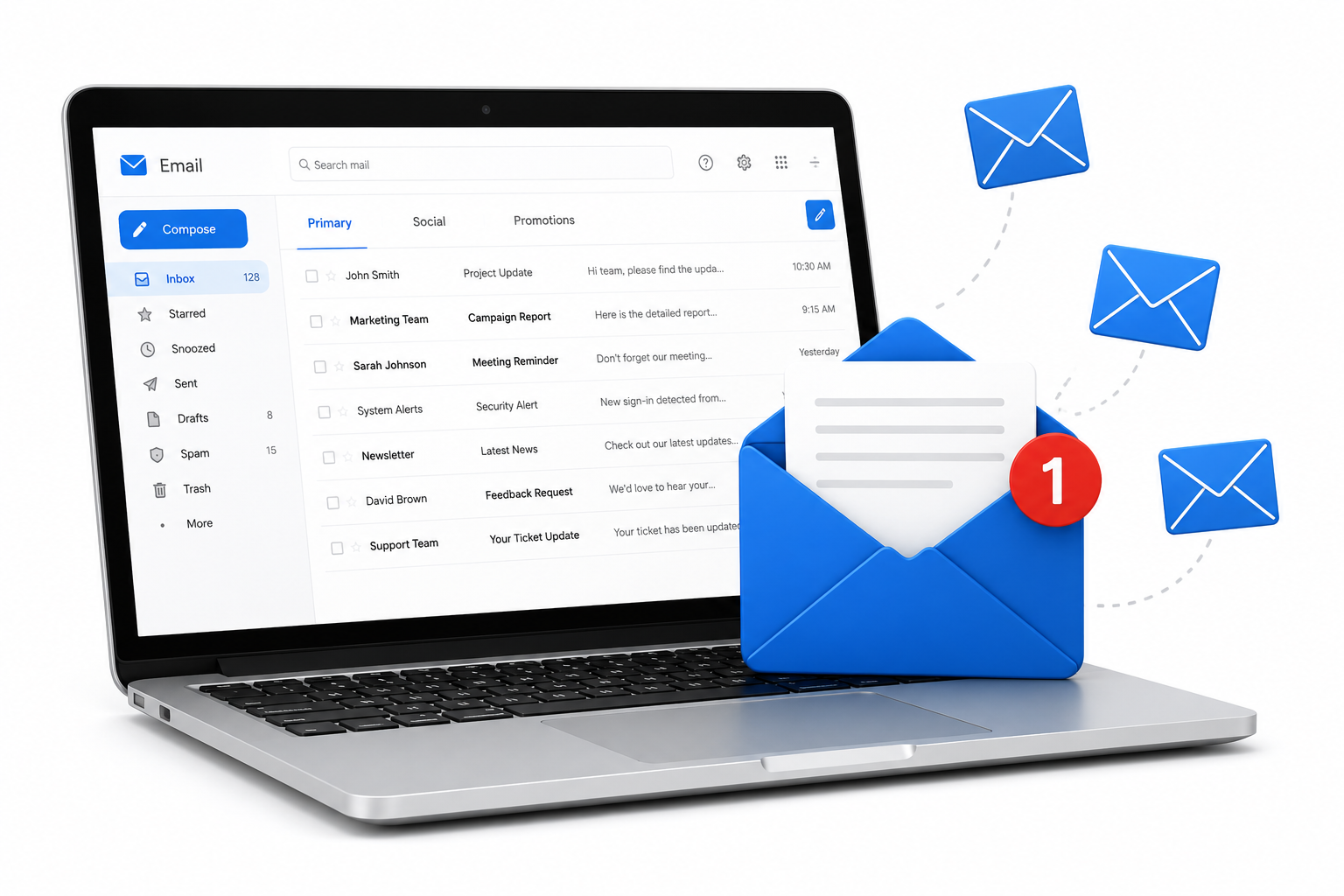
Match the screen with the email situation.
These examples explain common email app screens in a learning context, so readers can understand what the message usually points to before reading the detailed guide.
Outbox Sync Stuck
The email has been sent but remains in the outbox folder with a sync error or pending status. This usually means the app is waiting for connection, SMTP authentication, or file upload completion.
SMTP Auth Blocked
The outgoing server rejects login credentials or authentication protocol. This means the client settings do not match the SMTP requirements of the email provider.
Attachment Too Large
Uploading files shows a warning that the document exceeds the server size limit. The email client blocks transmission because mail servers restrict large media packets.
IMAP Sync Delay
Inbox does not update instantly across multiple devices. The client connection drops during background synchronization, delaying new messages from loading.
Spam Filter Blocking
Safe emails are moved directly to junk or spam folders instead of the inbox. This happens when the sender profile parameters trigger server spam keywords or lack SPF/DKIM validation.
Storage Limit Reached
The system shows "storage full" warnings and blocks incoming mail. The cloud storage allocated for your inbox, attachments, and drive space has exceeded its size quota.
Where users usually check email status.
Active email settings, webmail storage dashboards, and synchronization panels are key locations where status and quotas appear.
Account Server Settings
The client setup screen where incoming server (IMAP/POP3) and outgoing server (SMTP) addresses and ports are configured.
Webmail Storage Dashboard
The cloud storage page displaying available mailbox quota, trash folder size, and heavy attachment files.
Send/Receive Status
The diagnostic connection box showing active folder upload status, synchronization speed, and server timeout alerts.
Email learning basics
Before understanding delivery failures or sync delays, it helps to understand the normal email path. A message requires a secure outbound protocol (SMTP), folder sync layers, and active mail quota to move successfully.
IMAP vs POP3
IMAP syncs messages dynamically across all devices; POP3 downloads them to one local client.
SMTP Protocol
Simple Mail Transfer Protocol handles the transmission path of outgoing mail.
2FA Authentication
Secures login connections using verification tokens to prevent unauthorized device access.
Common signs users may notice
These signs usually appear before users check mail client settings or storage quotas.
Sync error notice
Warning icons displaying next to folders, indicating a sync block.
Outbox warning
Mails remaining in the Outbox tray instead of shifting to Sent.
Mail quota alert
System banners warning that storage limits have reached capacity.
Password prompts
Repeated login boxes appearing on active mail client layouts.
Start with simple visual guides.
These guides explain common learning areas for email management with clean flow, simple wording, and visual step-by-step images.
Email not sending
8 visual steps to troubleshoot and fix common outgoing email delivery issues.
SMTP issues
8 visual steps to troubleshoot outgoing SMTP server authentication and connection problems.
Server errors
8 visual steps to identify and resolve critical incoming email server and synchronization errors.
What an email system does
Your mail client does not write directly to the receiver. It sends the message to an outgoing server (SMTP), which locates the recipient's host server, verifies security records, and pushes the data to the receiver's inbox via IMAP syncing.
Email server facts
Protocols sync data
Changing settings on one IMAP client reflects across all active devices instantly.
Security records protect accounts
SPF and DKIM authentication keys prevent spam spoofing of your domain profile.
Size impacts transmission
Larger file attachments require longer upload times and hit server quota thresholds.
Quick checklist
This checklist is for learning and awareness only. It helps readers understand the common order in which email connection topics are usually reviewed.
Is internet connection active?
Check active connection state to ensure sync commands run.
Verify outgoing SMTP address
Check if SMTP port parameters (465 or 587) match your mail provider.
Is attachment size below 25MB?
Large files exceed server packet limitations, blocking transmission.
Is account storage full?
Clean old folders or heavy attachments to free up mail quota.
Verify authentication credentials
Ensure SMTP password match and "My server requires authentication" is active.
Can you send a test email?
A blank test email confirms outbound and inbound synchronization paths work.
Status meanings
Stuck in outbox, connection timeout, invalid credentials, and storage quota full are different messages. Each phrase points to a different part of the mail connection path.
Stuck in Outbox
The message is waiting for outbound authorization, data upload, or connection links to resolve.
Connection Timeout
The email client took too long to reach the server, usually due to bad ports or slow network links.
Invalid Credentials
The server rejected the login ID or password settings during authentication check.
Quota Full
The mailbox has reached its storage capacity limit, blocking new incoming messages.
Detailed explanation
Why email connection alerts appear
An email client is not a simple writer app. It is a client terminal that communicates dynamically with remote mail servers. This depends on a chain of connections: client auth, SMTP outgoing pathways, MX records checks, and receiver inbox validation.
When mail gets stuck in the outbox, it is reporting that the SMTP outgoing channel is blocked. The email is written, but the outbound path is not clear. Verifying port settings or file sizes can help resolve this queue block.
Security settings play a major role in authentication. Shifting port standards (like SSL port 465 or TLS port 587) require matching security options in the client settings. Mismatched security layers trigger recurring login boxes or timeout errors.
Webmail cloud limits also impact communication. When storage capacity is reached, servers automatically bounce back incoming messages to the sender. Clearing junk folders or trash allocations removes these incoming blocks.
Common questions
Email management FAQs. Explore typical questions about outboxes, SMTP settings, and folder syncing.
This page is for learning email connection concepts.
Your Good Guide provides educational reading only. This page does not offer live support, phone support, remote access, repair service, driver installation service, or paid troubleshooting.
Live Help
No phone support
Diagnostic
No remote access
Software
No software sales
Verification
Official sources linked
Continue learning
Learn more driver concepts. Explore related educational guides about audio, graphics, network, USB, chipset, Bluetooth, and other driver topics.